Modify backup plan
Modify backup source
1) Log in to the database backup service console.
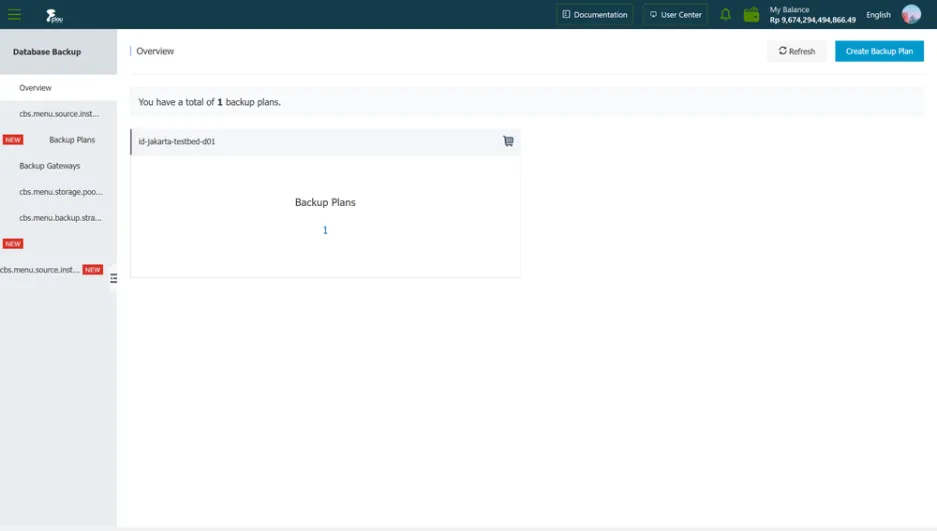 2) In the left navigation bar, click Backup Plan.
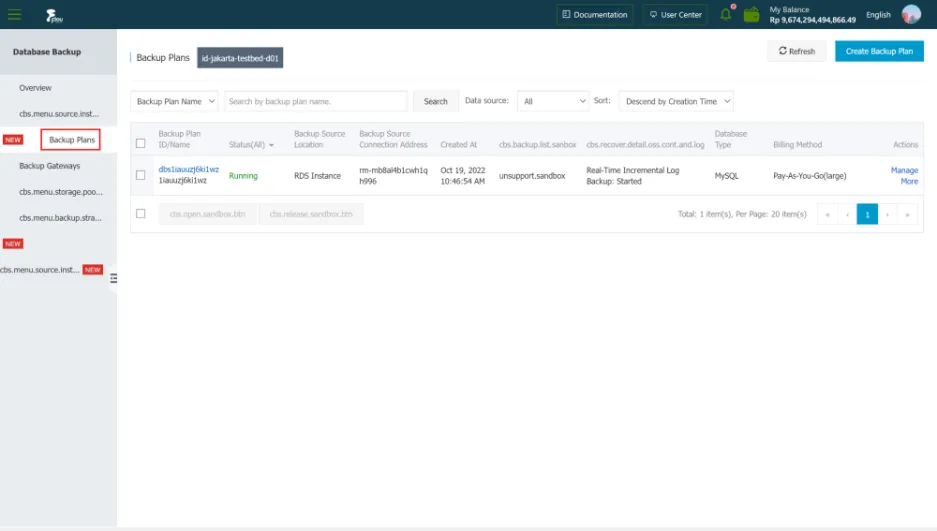 3) Find the target backup plan ID, and click the backup plan ID or Manage in the action bar.
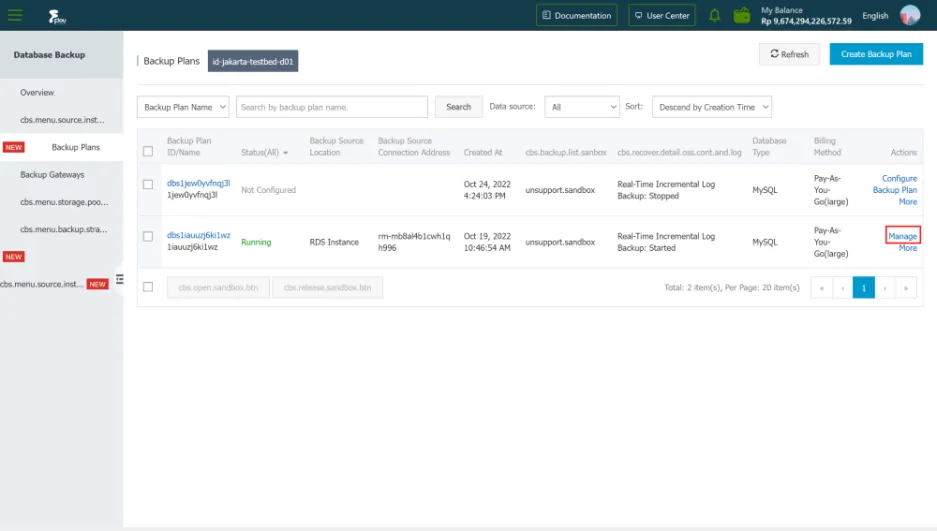 4) On the backup task configuration page, click Backup source settings at the top right of the basic information bar.
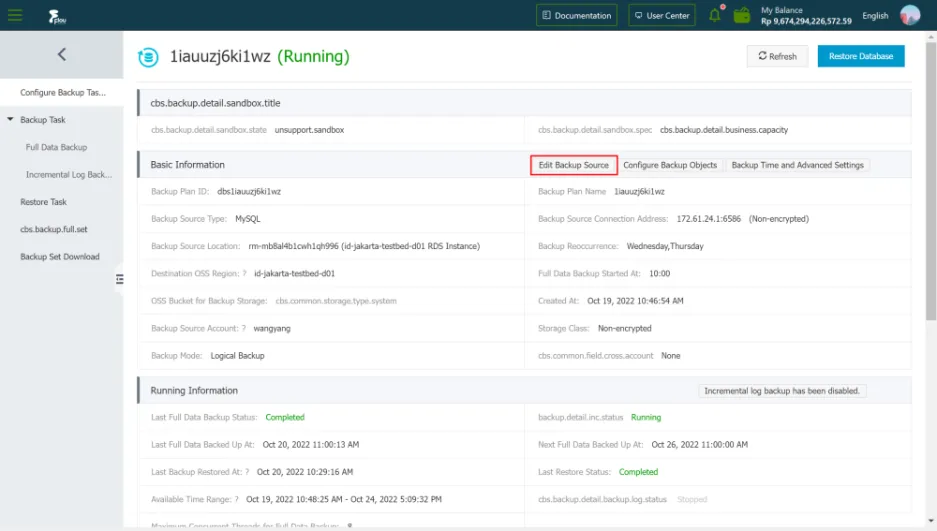 5) On the Backup Source Information page, enter the backup source information. For details, see Configuring Backup Plans.
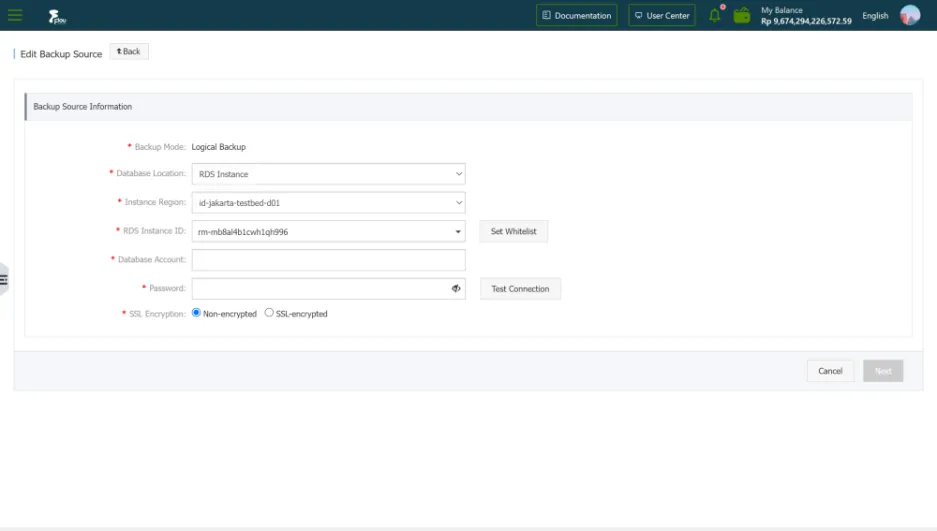 6) After completing the backup source information settings, click Next.
7) Move the database or table to be backed up to the Selected Database Object box, and click Save.
Modify backup object
1) Log in to the database backup service console.
6) After completing the backup source information settings, click Next.
7) Move the database or table to be backed up to the Selected Database Object box, and click Save.
Modify backup object
1) Log in to the database backup service console.
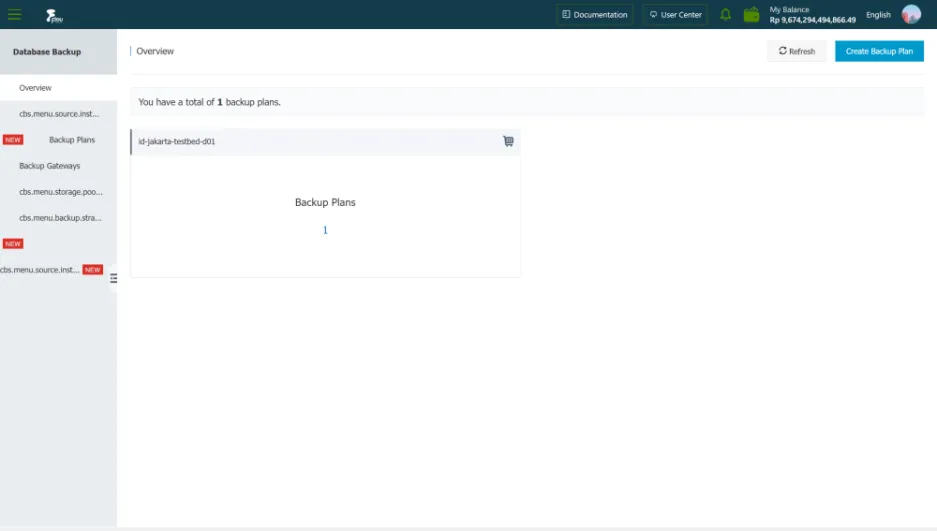 2) In the left navigation bar, click Backup Plan.
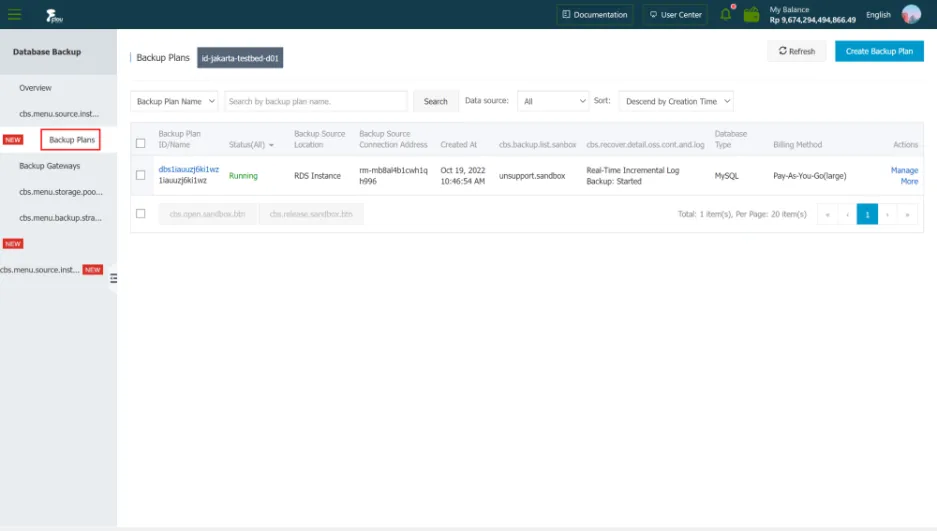 3) Find the target backup plan ID, and click the backup plan ID or Manage in the action bar.
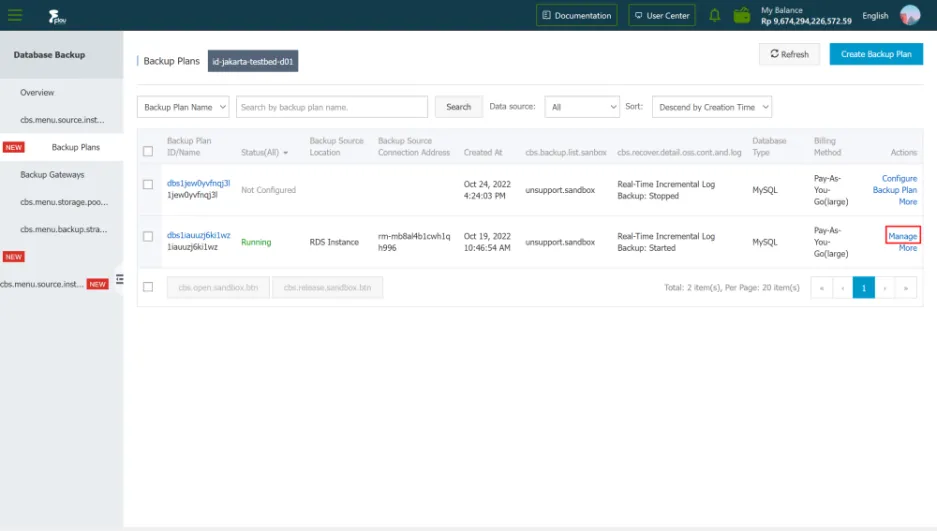 4) On the backup task configuration page, click Backup Object Settings at the top right of the basic information bar.
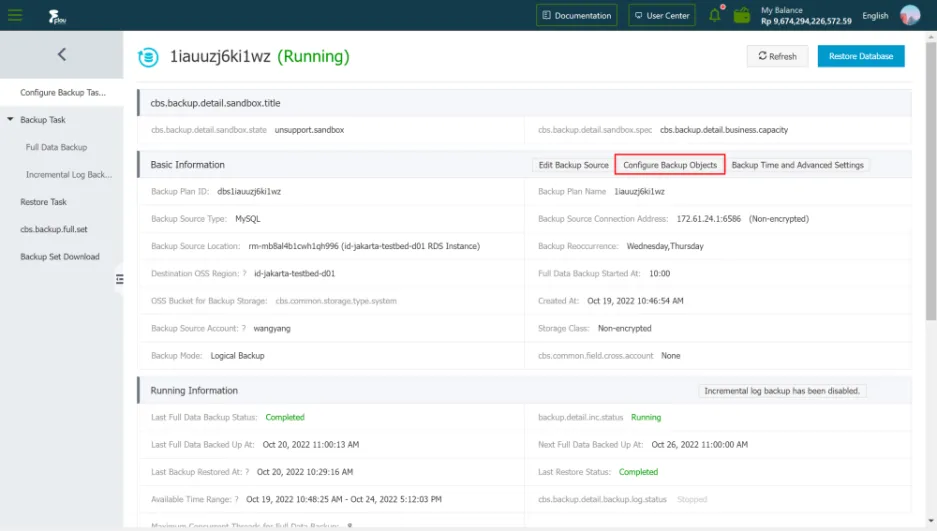 5) Select the database or table that needs to be backed up, or remove the database or table that does not need to be backed up.
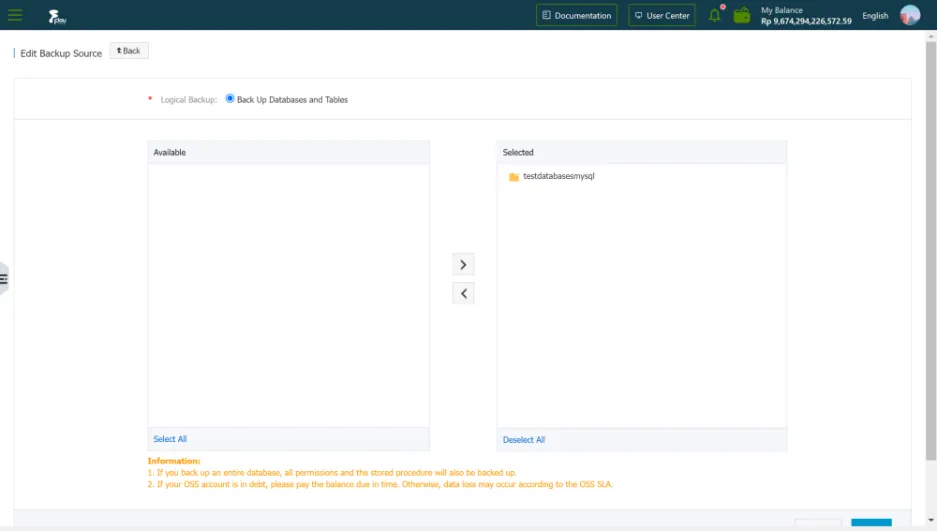 6) Click Save.
Modify backup time and advanced settings
1) Log in to the database backup service console.
6) Click Save.
Modify backup time and advanced settings
1) Log in to the database backup service console.
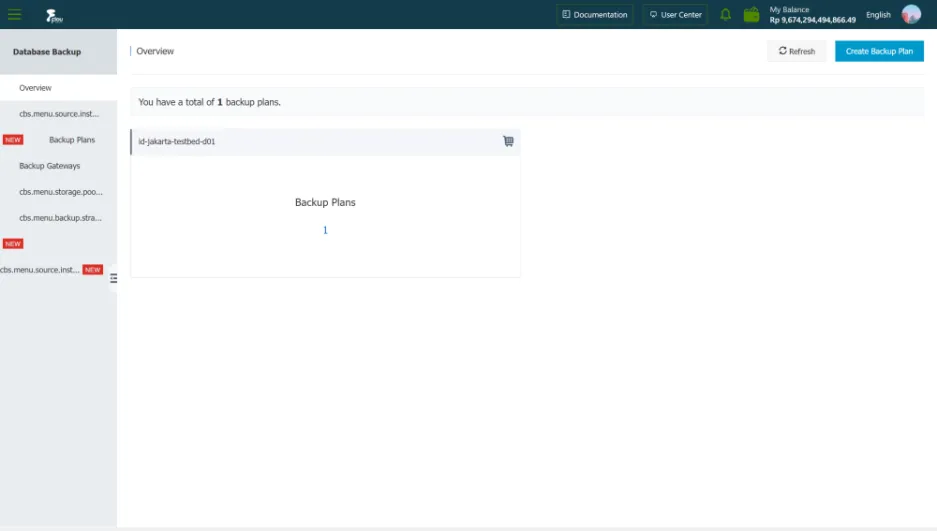 2) In the left navigation bar, click Backup Plan.
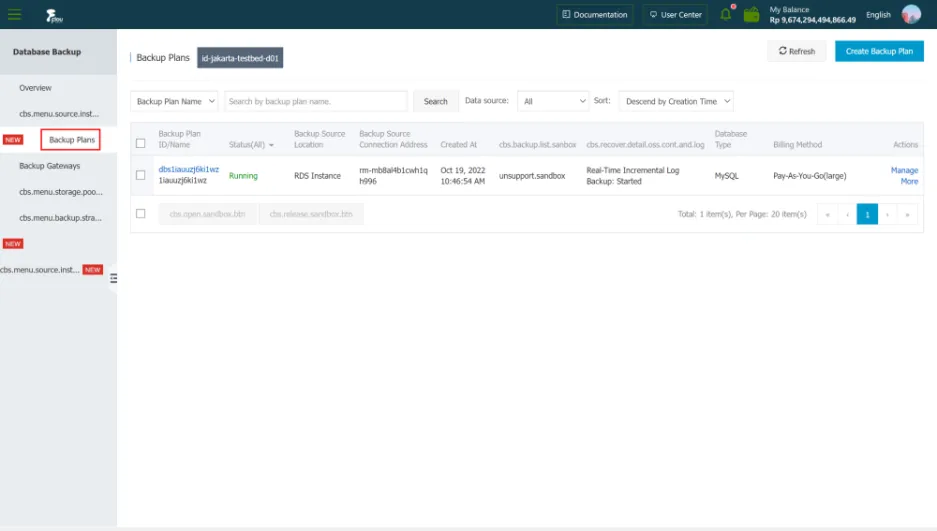 3) Find the target backup plan ID, and click the backup plan ID or Manage in the action bar.
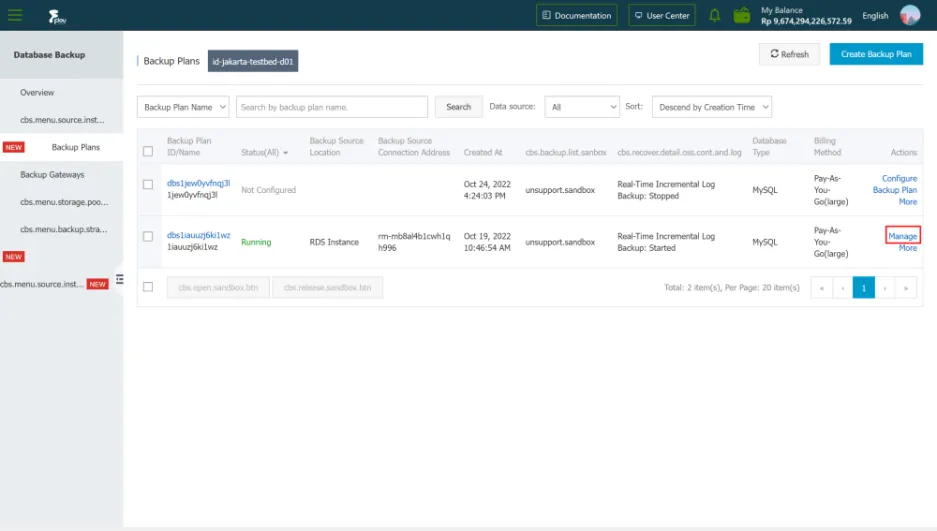 4) On the backup task configuration page, click Backup time and advanced settings at the top right of the basic information bar.
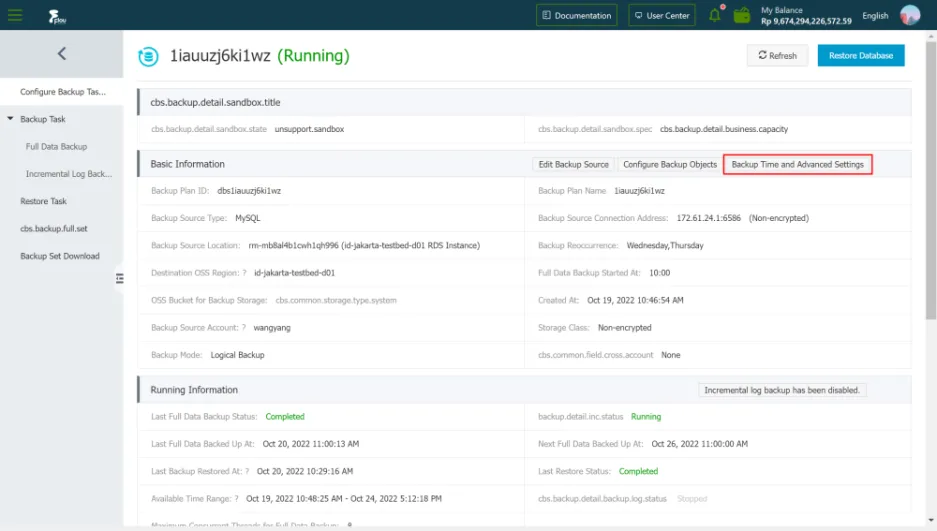 5) On the configuration modification page, configure the backup time and other information. For details, see Configuring Backup Plans.
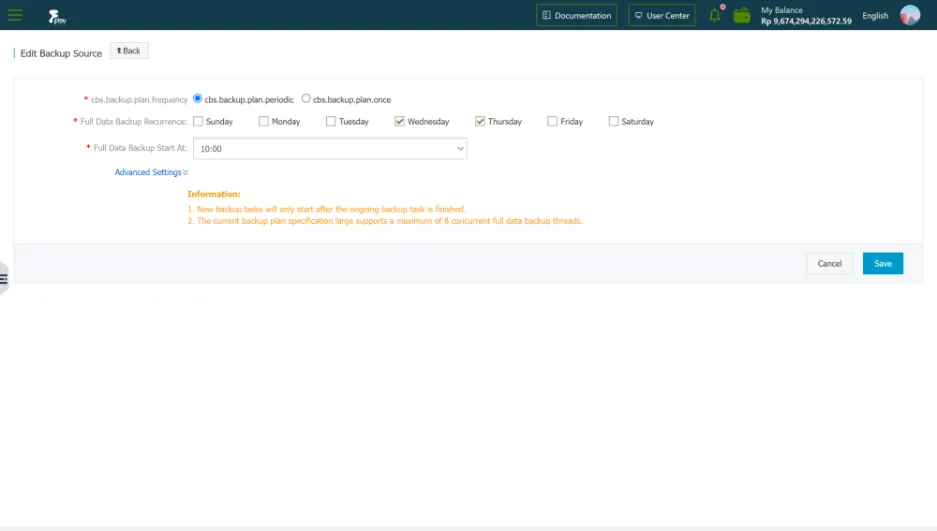 6) Click Save
Turn off or turn on incremental log backup
1) Log in to the database backup service console.
6) Click Save
Turn off or turn on incremental log backup
1) Log in to the database backup service console.
 2) In the left navigation bar, click Backup Plan.
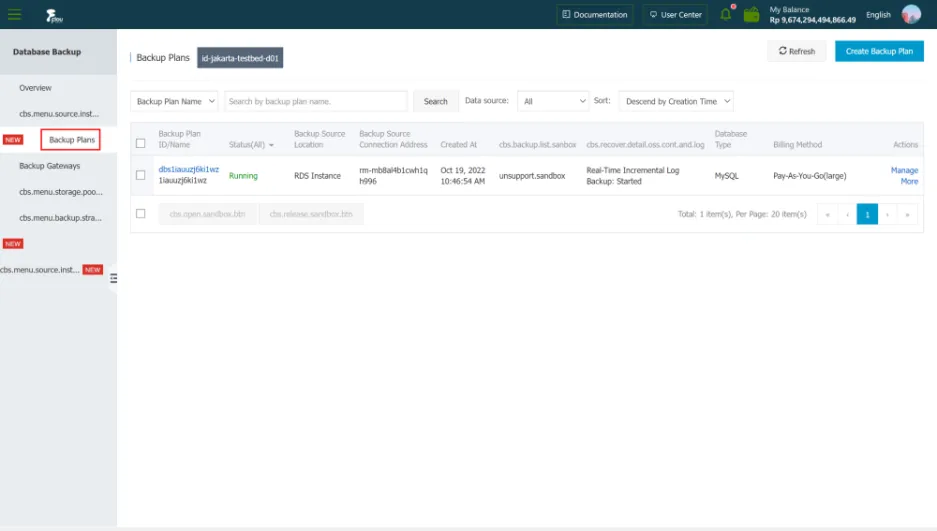 3) Find the target backup plan ID, and click the backup plan ID or Manage in the action bar.
 4) On the backup task configuration page, click Enable Incremental Log Backup or Disable Incremental Log Backup at the top right of the running information bar.
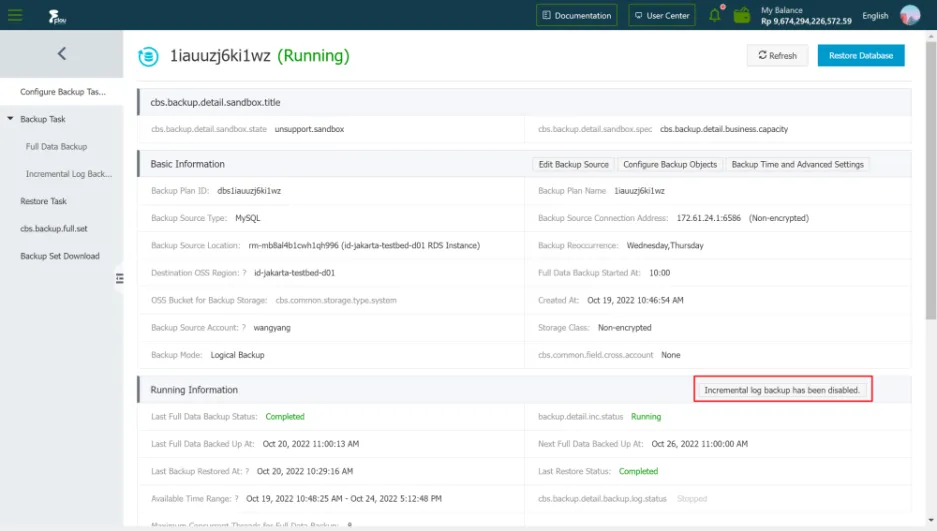 5) After clicking Enable Incremental Log Backup, the DBS instance will perform pre-check again. After the check is passed, click Start Now.
6) After clicking Close Incremental Log Backup, the backed up incremental logs will not be affected. The system will ask you whether you need to perform a full backup. If necessary, click OK.
Set life cycle
1) Log in to the database backup service console.
5) After clicking Enable Incremental Log Backup, the DBS instance will perform pre-check again. After the check is passed, click Start Now.
6) After clicking Close Incremental Log Backup, the backed up incremental logs will not be affected. The system will ask you whether you need to perform a full backup. If necessary, click OK.
Set life cycle
1) Log in to the database backup service console.
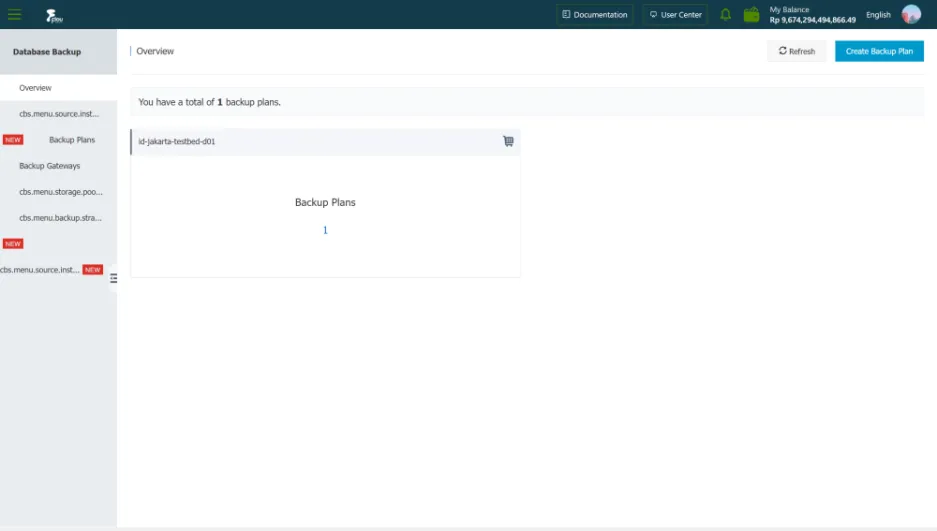 2) In the left navigation bar, click Backup Plan.
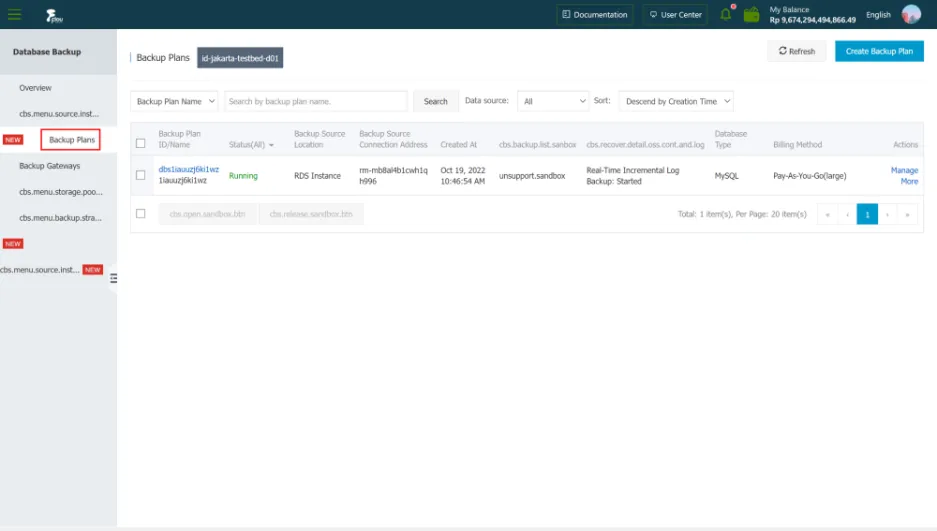 3) Find the target backup plan ID, and click the backup plan ID or Manage in the action bar.
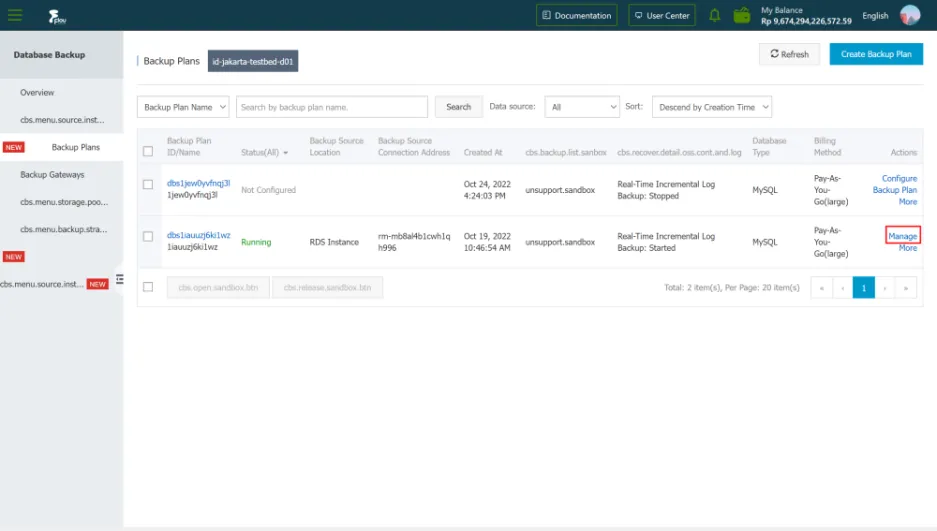 4) On the backup task configuration page, click Set Lifecycle at the upper right of the Lifecycle Information Bar.
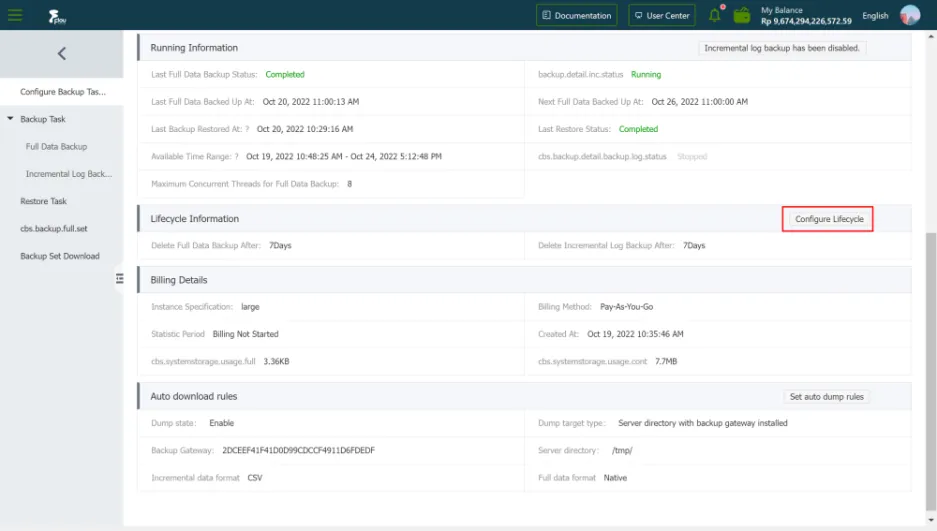 5) On the configuration modification page, enter the storage time of full backup data and incremental backup data.
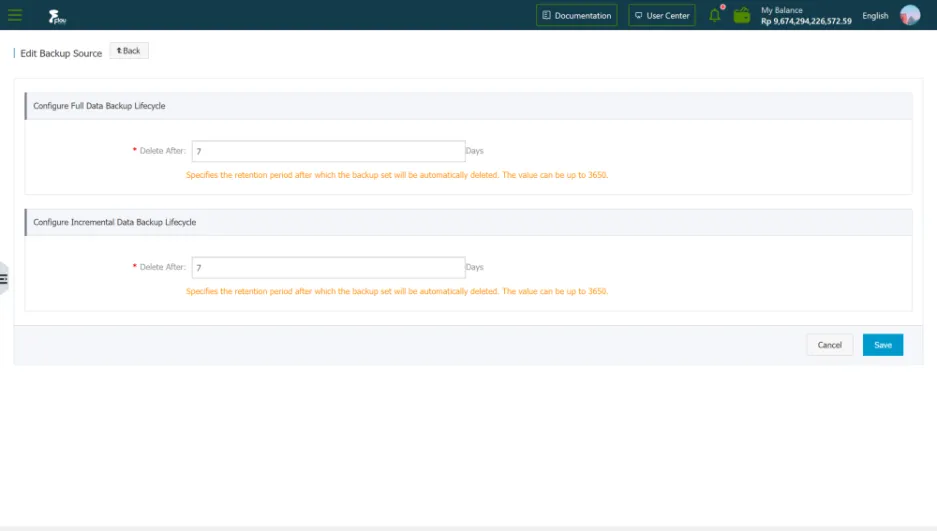 6) Click save.